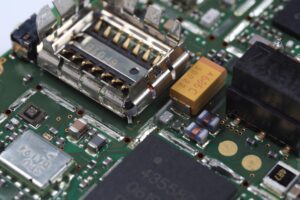
What Metals Are Recovered from Printed Circuit Boards?

Key Takeaways...

Printed circuit boards PCBs contain valuable metals such as gold and silver, copper, and palladium, which can be extracted through advanced metal recovery processes to support sustainable electronic waste management.

This process is essential as global electronic waste continues to rise due to increasing demand for electronic products and electronic equipment. Each printed circuit board PCB holds a complex mix of conductive materials and non-metal substances like epoxy resin, making it a rich source of reusable materials.

Metal Content in Printed Circuit Boards PCBs

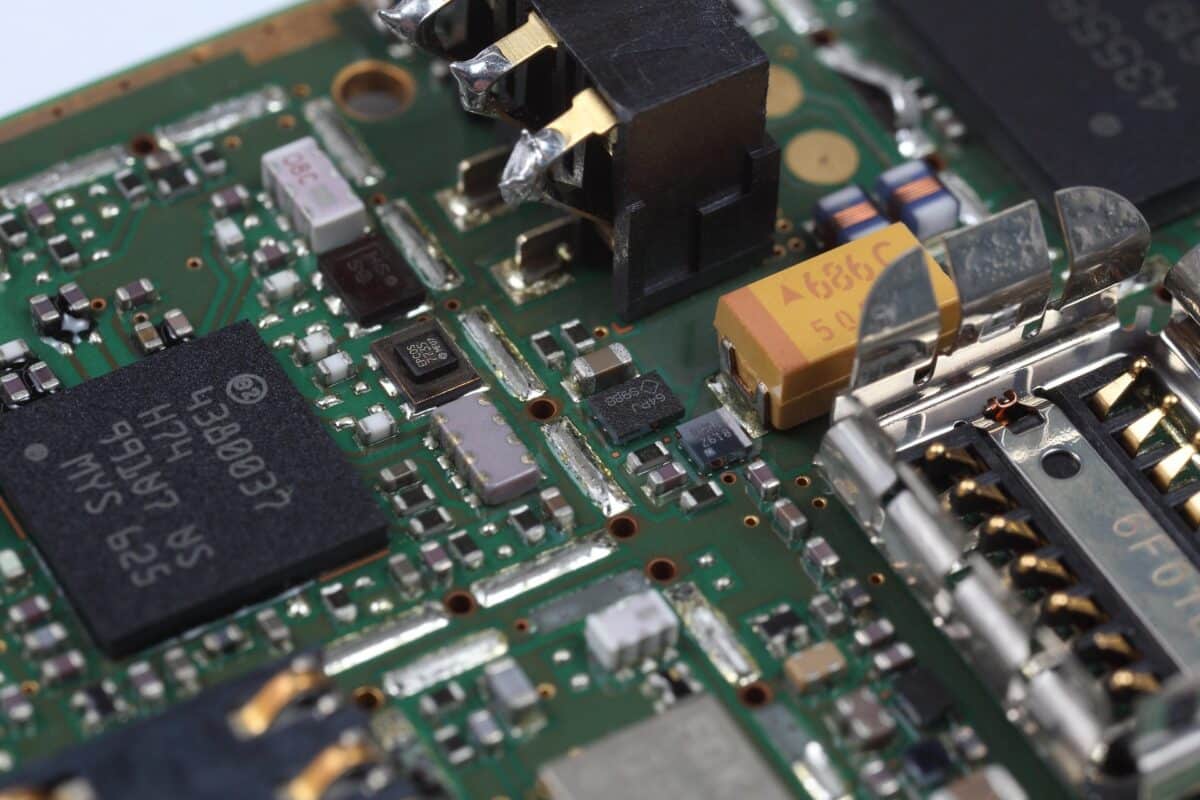
The metal content in printed circuit boards PCBs is significantly higher than many natural ores, making them a critical resource in modern recycling. These boards contain both precious and base metals, selected for durability, conductivity, and resistance to oxidation. Researchers note that the metal content in printed circuit boards pcbs is often compared to an “urban mine” because of its high concentration of recoverable materials.

  • Gold and silver are widely used due to their superior electrical properties.

  • Gold is commonly applied to connectors and contact points, while silver enhances conductivity in circuits and soldering materials.

  • Copper forms the primary conductive layer within most boards, ensuring efficient performance.

Research on metal content highlights that recovering metals from electronic waste is more efficient than traditional mining in terms of both energy use and yield.

Additional valuable metals such as palladium and nickel are found in capacitors and protective coatings. These materials, although present in smaller quantities, contribute to the overall value of metal recovery.

Which Valuable Metals Are Recovered from Printed Circuit Board PCB Recycling

In printed circuit board pcb recycling, process selection is tailored to board composition and downstream purity targets. In practice, valuable metals are recovered from printed circuit board pcb through a combination of mechanical pre-processing and carefully controlled metallurgical extraction.

A wide range of valuable metals can be extracted from printed circuit boards PCBs, each serving a specific role in modern electronics.

  • Gold and silver remain essential due to their high conductivity and durability.

  • Copper dominates in volume, forming the backbone of circuit pathways.

  • Palladium is commonly found in multilayer components, while nickel protects plated surfaces from corrosion.

Studies on metal recovery confirm that advanced extraction processes significantly improve recovery efficiency and material purity.

How Metal Recovery Supports Electronic Waste Management

Efficient metal recovery plays a central role in modern waste management systems. Without structured recycling, electronic waste from outdated electronic equipment would continue to accumulate in landfill sites.

  • A robust management system ensures proper handling at every stage.

  • Mechanical shredding reduces printed circuit boards PCBs into smaller fragments, allowing metals to be separated from epoxy resin and other non-metal components.

Further technical insights into electronic waste recycling explain how integrated processes maximise recovery rates while maintaining environmental compliance.

Environmental and Economic Benefits of Metal Recovery

Recovering metals from printed circuit boards PCBs offers both environmental and financial advantages. It reduces the need for mining, lowers greenhouse gas emissions, and conserves natural resources.

From an economic perspective, electronic waste serves as a valuable resource. The concentration of valuable metals within discarded boards often exceeds that found in natural deposits, making recycling more efficient and cost-effective.

This ensures a stable supply of materials for manufacturing new electronic products and supports a circular economy.

Challenges in Printed Circuit Board PCB Recycling

Despite its benefits, metal recovery involves several challenges. The combination of metals with non-metal materials like epoxy resin makes separation technically complex.

Older electronic equipment may also contain hazardous substances, requiring strict environmental controls. Without proper waste management and a reliable management system, these risks can impact both human health and ecosystems.

Advanced Innovations in Metal Recovery

Recent developments are improving how metal recovery is performed. Emerging techniques such as bioleaching and low-impact chemical processing aim to increase efficiency while reducing environmental harm.

Industry advancements highlighted through PCB recycling demonstrate how innovation is transforming electronic waste into a sustainable source of raw materials.

The Role of Sustainable Waste Management Systems

Sustainable waste management ensures that electronic waste is processed responsibly and efficiently. A well-designed management system enables safe collection, precise material separation, and optimal recovery of metals.

Understanding what metals are recovered from printed circuit boards PCBs highlights the importance of responsible recycling. These components represent a valuable resource that supports both environmental protection and economic growth.

By improving metal recovery methods and strengthening waste management systems, industries can meet the growing demand for electronic equipment while reducing environmental impact.

Recycling electronic waste is a vital step towards a more sustainable future.
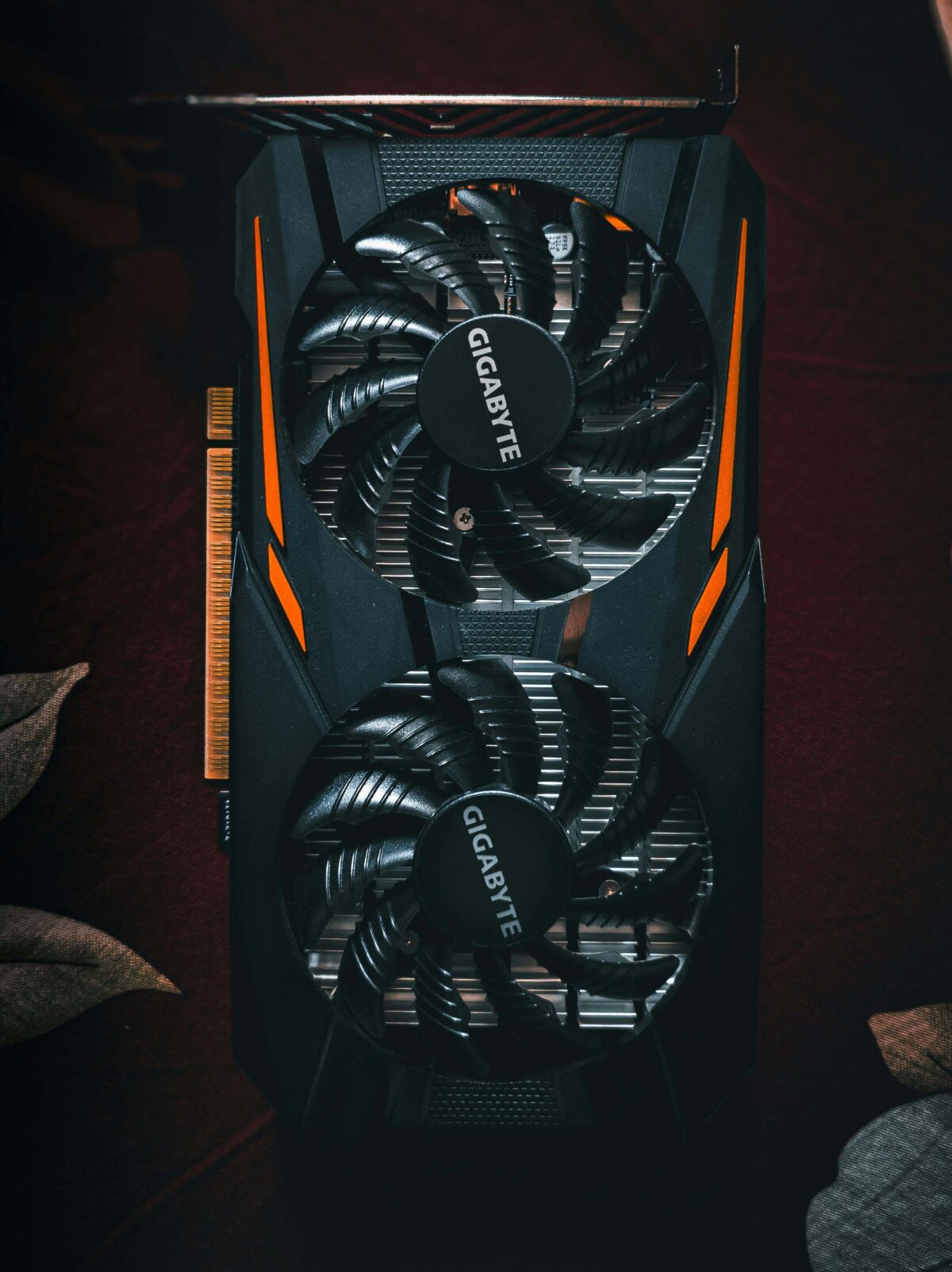
What Is Inside A Graphics Card?

Key Takeaways...

A graphics card is an expansion card that contains a graphics processing unit (often abbreviated GPU), video memory, power delivery components, and a PCI Express interface. It is designed to process multiple data streams and render images, video, and animations efficiently using high processing power.

What Is Inside a Graphics Card? Full Explanation

Understanding what is inside a graphics card is essential for improving performance, upgrading hardware, or building a PC. If you’ve ever wondered “what is inside a graphics card?”, this guide outlines the major parts and how they connect. A graphics card is built as an integrated circuit system that connects to the motherboard through PCI Express and works alongside the CPU and system RAM. This overview also explains how a graphics card works in practice.

Graphics Processing Unit GPU (Core Component)

How the Graphics Processing Unit Works

The graphics processing unit (GPU) is the central component responsible for all rendering and calculations. It is specifically designed to process multiple data operations at the same time, unlike a CPU, which handles sequential tasks.

This ability makes modern graphics processors extremely powerful in handling graphics, artificial intelligence, and machine learning workloads. The architecture includes thousands of small cores that divide tasks efficiently, improving processing power significantly.

Leading manufacturers such as AMD and NVIDIA continue to develop graphics chips with advanced designs. Products like the NVIDIA GeForce series highlight how far graphics technology has evolved. Clock speed also plays a role in performance, as it determines how quickly instructions are processed. However, real-world performance depends on the balance between clock speed, architecture, and cooling efficiency.

Video Memory and High-Speed Data Access

Video Memory vs Random Access Memory

Video memory stores textures, frame buffers, and graphical assets that the graphics processor needs to access instantly. This memory is separate from system RAM, which is used for general computing tasks.

Random access memory supports the operating system and applications, while video memory is dedicated entirely to graphics. This separation ensures smoother performance, especially in high-resolution environments.

Modern graphics cards rely heavily on video memory to manage large datasets. When there is insufficient memory, performance issues such as lag and stuttering occur.

Integrated Circuit and PCB Design

A graphics card is built on a printed circuit board that connects all components into a single expansion card. This integrated circuit design ensures efficient communication between the processor, video memory, and power systems.

The layout is carefully engineered to support high-speed data transfer and maintain stability under heavy workloads. A well-designed PCB improves durability and enhances overall performance.

PCI Express Interface and System Communication

Why PCI Express Is Essential

The PCI Express interface connects the graphics card to the motherboard and allows communication between the graphics processor, CPU, and system RAM.

It provides high bandwidth, ensuring that multiple data streams can be transferred quickly. This is critical for modern processors that handle large amounts of information in real time.

Without PCI Express, the graphics card would not be able to function efficiently within the system.

Power Supply and Energy Distribution

Power Supply Requirements in Modern Graphics Cards

A graphics card requires a stable power supply to handle its processing power demands. While PCI Express provides some energy, high-performance cards require additional connectors linked directly to the system power supply.

Voltage regulation components ensure consistent energy delivery across the card. As these chips become more powerful, their energy requirements increase significantly.

Choosing the correct power supply is essential to avoid instability, crashes, or hardware damage.

Cooling System and Thermal Efficiency

The graphics processor generates heat when processing multiple data tasks. Without proper cooling, performance drops and long-term damage can occur.

Cooling systems use heatsinks, fans, and thermal designs to manage temperature. Efficient cooling allows the chip to maintain a higher clock speed and operate consistently.

Advanced Features in Modern Graphics Cards

Artificial Intelligence and Machine Learning

Modern graphics cards are designed for more than graphics. They now support artificial intelligence and machine learning, making them essential for advanced computing tasks.

These features allow cards to process large datasets, improve image quality, and accelerate complex calculations. Some models include application-specific cores designed for AI workloads.

This evolution has made graphics cards valuable in industries such as data science, video production, and engineering.

How a Graphics Card Works Step by Step

To fully understand what is inside a graphics card, it is important to look at how it operates.

When a program runs, the CPU sends instructions through PCI Express. The graphics processing unit (GPU) processes this information using its cores.

Video memory stores textures and data, allowing fast access. The GPU renders the image and sends it to the display. Throughout this process, the power supply ensures stable energy delivery, while the cooling system manages temperature.

Why Understanding Graphics Card Components Matters

Knowing what is inside a graphics card helps you make better hardware decisions. Each component directly affects performance and reliability.

A powerful graphics processor (GPU) improves speed. Sufficient video memory ensures smooth performance. A stable power supply and efficient cooling system maintain long-term reliability.

Understanding these components also makes it easier to compare solutions from AMD and NVIDIA and select the best option.

What Percentage of Mobile Phones Are Recycled?

Key Takeaways...

Around 15% to 20% of mobile phones are properly recycled in the UK and globally. The majority remain as unused devices in UK homes or are disposed of incorrectly, contributing to rising electronic waste and increased environmental impact. This underlines the importance of phone recycling to keep materials in use.

The current recycling rate shows that most electronic equipment is not being reused or properly recycled, underscoring the need for more effective mobile phone recycling. Millions of mobile phones sit unused in drawers, creating inefficiencies in supply chains and increasing the carbon footprint linked to manufacturing new devices.

The issue is not just waste but lost value, as these devices contain rare earth elements and reusable materials that could support a more sustainable system.

What Percentage of Mobile Phones Are Recycled in the UK?

For anyone asking “what percentage of mobile phones are recycled?”, recent data indicates that only 15% to 20% of mobile phones are properly recycled. This means that up to 80% of mobile devices are either stored, discarded improperly, or lost within informal disposal systems.

Many remain unused in UK homes, which prevents valuable materials from re-entering production cycles.

Why So Many Mobile Phones Are Not Properly Recycled

A key reason is behavioural. People tend to hold onto a mobile device as a spare, even when it is no longer functional or needed. Over time, these unused devices accumulate.

Reports on unused devices in UK homes show that valuable technology is often left idle rather than reused or recycled.

Another factor is the lack of awareness about secure phone recycling methods. Concerns about personal data stored on mobile phones discourage users from disposing of them.

Convenience also plays a role. If recycling options are not simple or accessible, people delay action, increasing electronic waste levels. These barriers make it less likely for people to recycle phones through trusted services.

Environmental Impact of Low Recycling Rates

Mobile phones contain rare earth elements, metals, and plastics that require intensive mining and processing. When electronic equipment is not properly recycled, these materials are lost.

According to electronic waste recycling statistics, smaller devices such as phones have lower recycling rates compared to larger items like desktop computers. This imbalance increases pressure on supply chains and drives further extraction of raw materials.

Research into the environmental impact of electronic waste highlights rising pollution, resource depletion, and higher carbon footprint levels caused by improper disposal.

How Refurbished Devices Improve Recycling Rates

Refurbished devices are a key solution to reducing electronic waste. Instead of discarding a mobile device, it can be restored and resold as one of many refurbished phones.

This reduces demand for new production, cuts emissions, and supports sustainable supply chains. It also keeps electronic equipment in use for longer, lowering overall environmental impact.

Studies on how many phones are discarded show that reuse and refurbishment could significantly increase the effective recycling rate.

Choosing refurbished phones also helps consumers reduce costs while supporting a circular economy model.

How to Increase the Mobile Phone Recycling Rate

Improving recycling rates requires consistent action. Preparing a mobile device for recycling by removing data and resetting it ensures safe disposal.

Using certified recycling services ensures that electronic waste is processed correctly and materials are recovered. Trade-in programmes and local collection points make recycling more accessible.

Improving awareness and accessibility will help reduce the number of unused devices and ensure more mobile phones are properly recycled.

The data clearly shows that the percentage of mobile phones that are properly recycled remains low. With millions of unused devices still stored in homes, there is a major opportunity to improve recycling outcomes.

By recycling electronic equipment, choosing refurbished devices, and supporting responsible disposal practices, individuals can reduce electronic waste, conserve rare earth elements, and lower the overall environmental impact of modern technology.

Where Can You Recycle Old Mobile Phones?

Key Takeaways...

You can recycle them at local recycling centres, retailer take-back schemes, charity donation programmes, or specialist phone recycling services. These options ensure safe disposal, protect personal data, and allow devices to be reused or responsibly dismantled. If you’re wondering where you  can recycle old mobile phones, these choices are easy to access and cover most needs. In the UK, these services are widely available and straightforward to use.

Old devices contain valuable materials such as copper and rare metals. Recycling them reduces waste and gives each mobile phone a chance for a lease of life through reuse. That’s why many people choose to recycle old mobile phones rather than leaving them unused.

Where Can You Recycle Old Mobile Phones in the UK?

A local recycling centre is one of the most reliable places to recycle old mobile phones in the UK. These centres follow strict environmental standards and ensure materials are recovered responsibly.

Retailers also offer convenient drop-off and trade-in services. For anyone asking “where can you recycle old mobile phones in the uk?”, many high street stores provide in-store collection points, allowing you to dispose of devices while supporting responsible phone recycling.

Donation is another effective option. If your device still functions, passing it on extends its use and reduces waste. This approach supports communities while giving your phone a meaningful lease of life.

For a more structured solution, specialist providers offer secure mobile phone recycling services. These ensure proper handling, reuse, and environmentally responsible disposal.

Why Phone Recycling Is Important

Recycling a mobile phone plays a key role in reducing electronic waste. Devices contain components that can be reused, helping to conserve natural resources and reduce the need for mining.

It also prevents hazardous materials from entering landfills. Proper phone recycling protects ecosystems while supporting a circular economy where products are reused rather than discarded.

How to Prepare Your Mobile Phone for Recycling

Before you recycle old mobile phones or take your device to a recycling centre, preparation is essential. Start by backing up your data, then perform a factory reset to remove all personal information. This ensures your information is fully protected.

Once complete, remove your SIM and memory cards. These simple steps make your mobile phone safe for recycling and reuse.

Can Old Mobile Phones Be Reused or Resold?

Many mobile phones can be refurbished and reused. Devices in good condition are often resold or donated, extending their lifespan. Even damaged phones can still be valuable, as parts and materials are recovered during the recycling process.

This process reduces waste and supports sustainability while offering financial or environmental benefits.

Yes, you can recycle old mobile phones at a recycling centre, through retailer schemes, donation programmes, or specialist services in the UK. Each option protects personal data, reduces waste, and gives devices a lease of life.

How Long Does a Motherboard Battery Last​?

Key Takeaways...

A motherboard battery typically lasts between 3 and 5 years, depending on usage, temperature, and system quality. In stable environments, it may last even longer.

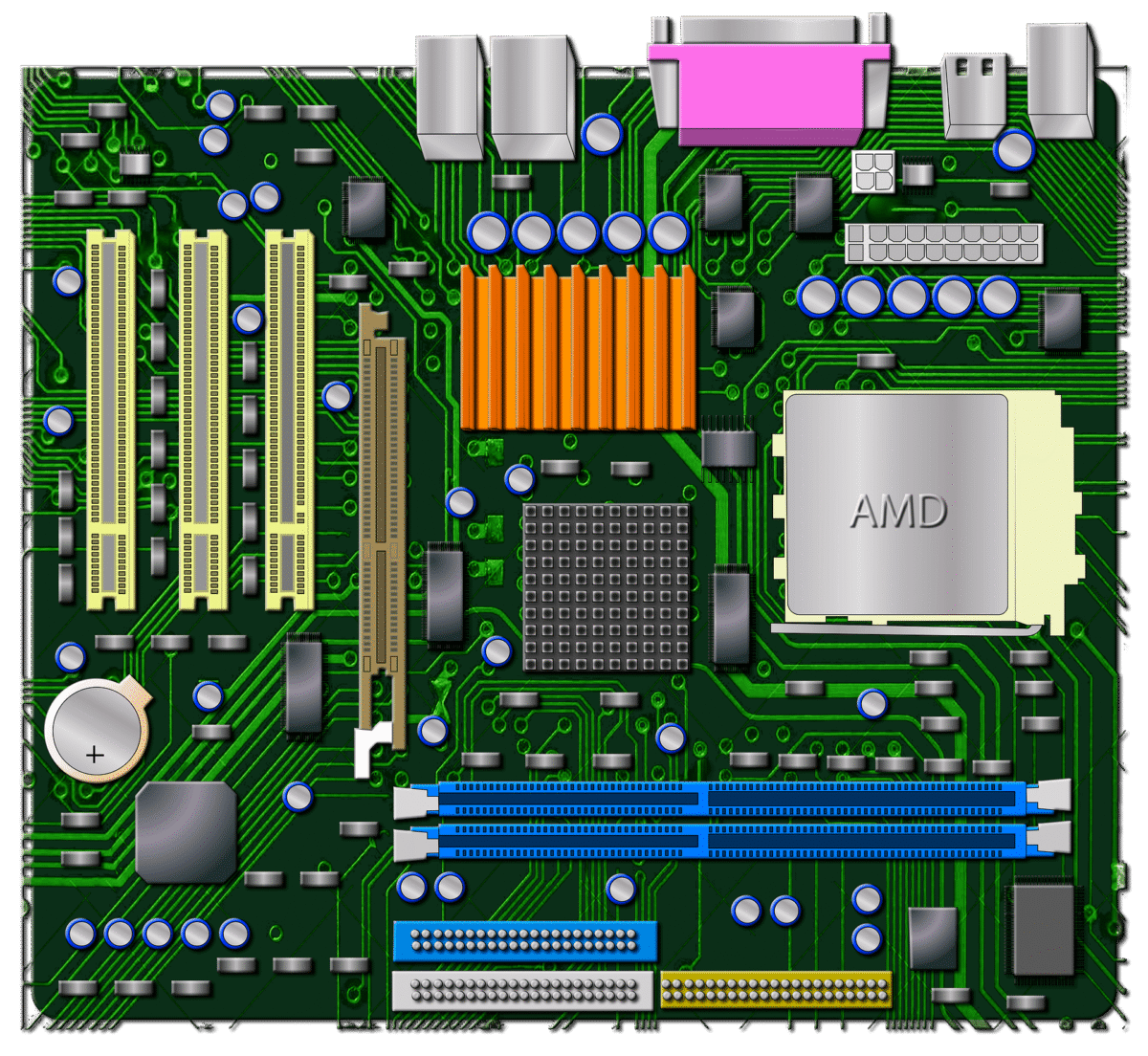
The most common type is the CR2032 lithium coin cell battery, designed for long-term low-power support of BIOS memory.

Modern motherboard design and PCB efficiency also influence battery performance. You can explore how circuit systems are structured through detailed PCB engineering insights found in motherboard PCB manufacturing guides from leading UK electronics specialists.

Because the CMOS battery only powers BIOS memory when the system is off, it experiences very low daily usage, which is why it lasts several years.

What Affects How Long a Motherboard Battery Lasts?

Several factors influence how long a motherboard battery lasts.

High internal temperature is the most common reason for faster battery drain. Poor airflow inside the PC case, dust buildup, and unstable power supply units can also reduce lifespan.

Frequent power cuts or improper shutdowns force BIOS to reset more often, which increases CMOS battery usage over time.

Stable system configuration and proper hardware design, as explained in advanced BIOS system documentation and motherboard support resources from leading processor manufacturers, help maintain long-term battery efficiency.

Signs Your Motherboard Battery Is Failing

When the CMOS battery begins to fail, your system will show clear symptoms.

The most common sign is an incorrect date and time after every restart. BIOS settings may also reset to default values without warning. Some users may experience CMOS checksum errors during startup.

Slow boot processes and repeated hardware detection are also strong indicators that the motherboard battery is weak and needs replacement.

Motherboard Battery

How to Replace a Motherboard Battery

Replacing a motherboard battery is simple and takes only a few minutes.

Turn off your PC completely and disconnect it from power. Open the case and locate the round CR2032 battery on the motherboard. Carefully remove it and insert a new one in the same position.

After replacement, restart the system and adjust BIOS settings if required. Proper installation ensures stable system performance and restores correct configuration instantly.

For safe handling and step-by-step replacement guidance, trusted computer hardware repair tutorials and CMOS replacement guides from professional tech support resources provide additional technical assistance.

How to Extend Motherboard Battery Life

A motherboard battery lasts longer when your system is properly maintained.

Keep your PC in a cool, well-ventilated environment to reduce heat stress. Avoid frequent forced shutdowns and always power off the system correctly.

Using stable power protection such as a UPS helps reduce BIOS resets caused by electricity fluctuations. Regular cleaning also improves airflow and reduces hardware strain, helping extend overall battery lifespan.

Why the Motherboard Battery Is Important

The motherboard battery plays a vital role in system stability.

It ensures BIOS settings remain saved when the PC is off, maintains accurate system time, and supports proper hardware detection during startup. Without it, the system would reset important configuration data every time power is lost.

Although small, it is essential for reliable computer operation.

Is A SSD A Hard Drive?

Key Takeaways...

If you are asking, “Is an SSD a hard drive?”, the correct answer is no. An SSD, which stands for Solid State Drive, is not a traditional hard drive, even though both are used for the same purpose of storing data inside computers, laptops, and gaming systems. The confusion happens because people often use the term “hard drive” to refer to any type of internal storage, but technically, only HDDs are true hard drives.

An SSD and an HDD may look similar in function, but they are completely different in design and technology. Understanding this difference is important because it directly affects your device’s speed, performance, reliability, and even power consumption.

What Is a Hard Drive (HDD)?

A Hard Disk Drive, commonly known as HDD, is a traditional storage device that stores data using magnetic material on spinning disks called platters. Inside the drive, a mechanical arm moves across the disk to read and write data. Because the system depends on physical movement, the speed of data access is limited by how fast the disks spin and how quickly the arm can locate the correct position.

This mechanical nature is why HDDs tend to be slower compared to modern storage devices. However, they are still widely used today because they offer large storage capacities at a relatively low cost. HDDs are often found in desktop computers, older laptops, and external backup drives where speed is not the highest priority but storage space is important.

What Is an SSD (Solid State Drive)?

A Solid State Drive, or SSD, is a modern storage device that uses flash memory to store data electronically. Unlike HDDs, SSDs do not contain any moving parts. Instead, data is stored in memory chips, allowing the device to access information almost instantly.

Because there is no mechanical movement involved, SSDs are significantly faster and more efficient. When you turn on a computer with an SSD, the operating system loads in seconds rather than minutes. Applications open more quickly, files transfer faster, and overall system responsiveness is greatly improved.

SSDs are now widely used in modern laptops, gaming PCs, and high-performance workstations because they offer a much better user experience compared to traditional hard drives.

SSD vs HDD: Understanding the Real Difference

The main difference between SSDs and HDDs lies in how they store and access data. A hard drive relies on physical movement, while a solid state drive uses electronic memory. This difference affects nearly every aspect of performance.

Speed is one of the most noticeable differences. SSDs can access data almost instantly, while HDDs require time for the disk to spin and the read/write head to locate the data. This makes SSDs much faster for booting systems, launching software, and handling large files.

Durability is another major difference. Since HDDs contain moving parts, they are more vulnerable to damage from drops, shocks, or long-term wear. SSDs are more resistant to physical impact because they have no mechanical components.

Power usage also differs between the two. HDDs consume more energy because of their spinning disks, while SSDs are more energy-efficient, which helps extend battery life in laptops.

Why SSDs Are Replacing HDDs

In modern computing, SSDs are becoming the standard storage solution because they dramatically improve performance. The speed difference alone is enough to make a noticeable impact in everyday use, especially for gaming, video editing, and multitasking.

Another reason SSDs are replacing HDDs is reliability. Since SSDs have no moving parts, they are less likely to fail due to physical damage. This makes them ideal for portable devices such as laptops.

However, HDDs are still relevant because they offer much cheaper storage for large amounts of data. This is why many users now combine both technologies, using an SSD for the operating system and applications while using an HDD for files, backups, and media storage.

Common Misunderstandings About SSD and Hard Drives

Many people refer to SSDs as “hard drives,” but this is technically incorrect. The term “hard drive” originally refers only to mechanical hard disk drives. Over time, however, the term has become more general in everyday language and is often used to describe any internal storage device.

Despite this common usage, professionals in the computer industry clearly separate the two because they function very differently. Understanding this distinction helps when choosing storage upgrades or comparing computer specifications.

So, is an SSD a hard drive?

The answer is no. An SSD is a modern storage device that uses flash memory, while a traditional hard drive uses spinning magnetic disks. Although both are used for storing data, SSDs are faster, more durable, and more efficient, making them the preferred choice for most modern computers.

At the same time, HDDs still play an important role in providing affordable, high-capacity storage. Choosing between them depends on whether you prioritize speed or storage size.


How Do I Erase a Hard Drive?

Key Takeaways...

Data Sanitisation Explained

A proper hard drive wipe process removes all traces of information by overwriting storage sectors or using secure erase commands built into the drive firmware. This process is known as data sanitisation, and it ensures that data becomes irrecoverable even with forensic tools.

Hard drive wiping is essential when selling a device, recycling old hardware, upgrading systems, or removing sensitive business and personal information. It applies to both traditional HDDs and modern solid-state drive (SSD) systems, although SSDs use different internal storage mechanisms. If you’re wondering “how do i erase a hard drive?”, the guidance below explains secure approaches beyond simple file deletion and helps you choose the right method for your device.

Why Simply Deleting Files Is Not Enough

When you perform normal file deletion, the operating system only removes file references while the actual data remains stored on disk drives until it is overwritten. This creates a security risk because the data still physically exists even though it is not visible to the user.

Because data recovery tools can reconstruct deleted files, sensitive information such as passwords, financial records, personal documents, and system logs may still be exposed if the drive is not securely erased. This is why proper wiping is required for full protection of personal data.

Hidden Risk: Data Recovery After Deletion

Even after formatting or deleting partitions, remnants of data can still remain due to how file systems allocate storage space. Advanced recovery tools can scan these remnants and rebuild deleted files. This makes simple deletion or formatting unsafe for devices that contain sensitive or confidential information.

How Do I Erase a Hard Drive Using Windows Settings

Windows includes a built-in reset function found in Settings > Update & Security > Recovery, which allows you to reset the PC and remove all files. This process reinstalls Windows and deletes user profiles and applications, making it suitable for basic system cleanup.

However, this method is not always sufficient for complete data security because some residual data fragments may still exist on disk drives unless the full clean option is selected during reset.

How to Wipe a Hard Drive Using Windows Disk Management

Using Windows Disk Management, you can delete partitions, format drives, and reorganise storage devices. This method is commonly used when preparing a drive for reuse or reinstalling an operating system.

Although formatting removes the file structure, it does not fully erase the underlying data. This means that advanced data recovery tools may still retrieve information unless a secure overwrite process is performed afterward.

SSD vs HDD: Why Wiping Methods Are Different

A solid-state drive (SSD) stores data using flash memory cells rather than spinning magnetic disks. Because SSDs use wear-leveling technology, data is distributed across memory cells in a way that makes traditional wiping methods less effective.

For SSDs, secure erase commands or manufacturer-level tools are required to fully reset memory blocks and ensure complete data removal. This makes SSD wiping more dependent on firmware-level operations compared to traditional HDD methods.

Securely Erasing a Hard Drive with Recovery Protection

Modern recovery tools are designed to restore deleted or formatted data, which is why secure erasure is essential. If a drive is not properly wiped, these tools can still recover sensitive personal data, even after formatting.

Secure wiping works by overwriting data multiple times or resetting storage sectors so that no readable information remains on disk drives. This ensures that recovery becomes impossible through both software and forensic methods.

Windows Disk Management vs Secure Erase Methods

While Windows Disk Management is useful for formatting and partition control, it does not guarantee permanent deletion. Data may still exist beneath the file system layer and remain recoverable.

In contrast, secure erase methods fully overwrite or reset the drive structure at a deeper level, ensuring that recovery through data recovery tools is no longer possible.

Permanent Deletion vs Deleting Files

Normal deleting files (file deletion) only removes access pointers from the file system. The actual data remains stored on disk drives until it is overwritten.

True permanent deletion requires secure wiping methods that overwrite or erase all sectors of the drive so that no personal data can be recovered under any circumstance.

Advanced Method: Full Drive Overwrite for Maximum Security

The most secure method of wiping a hard drive is a full drive overwrite, which writes random or structured data across the entire storage space. This process eliminates hidden data fragments and ensures complete sanitisation of storage devices.

This method is widely used in enterprise environments where strict data security and compliance standards are required.

Best Practices for Secure Hard Drive Wiping

To fully protect personal data, the most effective approach is to combine multiple wiping methods. A system reset using Settings > Update & Security > Recovery can be used first, followed by partition removal through Windows Disk Management, and then a secure overwrite process for complete sanitisation.

This layered approach ensures that all storage devices are cleaned beyond recovery limits, even against advanced recovery tools or forensic-level scanning.

Understanding how to erase a hard drive is essential for protecting sensitive information. Simple deletion is not enough because data remains on disk drives and can still be recovered. A proper wipe process ensures that all personal data is permanently removed from both HDD and SSD storage devices, making recovery impossible and securing your privacy at a professional level.

What Does a Hard Drive Do? HDD vs SSD Data Storage Explained

Key Takeaways...

What Does a Hard Drive Do in a Computer?

A hard drive is the primary data storage device in a computer responsible for storing and retrieving digital information. This includes the operating system, software applications, documents, photos, videos, and system files.

A hard drive ensures that your data remains saved even when the computer is turned off, making it an essential part of any computing system.

There are two main types of storage devices:

  • HDD (Hard Disk Drive) — traditional mechanical storage
  • SSD (Solid-State Drive) — modern flash-based storage

Both serve the same purpose but operate in very different ways.

Understanding what does a hard drive do is essential because it is the main data storage device that allows a computer to function properly. A hard drive stores and retrieves data such as the operating system, software, documents, images, and videos. It ensures that all information remains saved even when the computer is powered off.

Every action you take on a computer depends on this system because it continuously stores and retrieves data in the background. Without a hard drive, a computer cannot operate since there would be no place where data is stored.

How a Hard Drive Stores and Retrieves Data

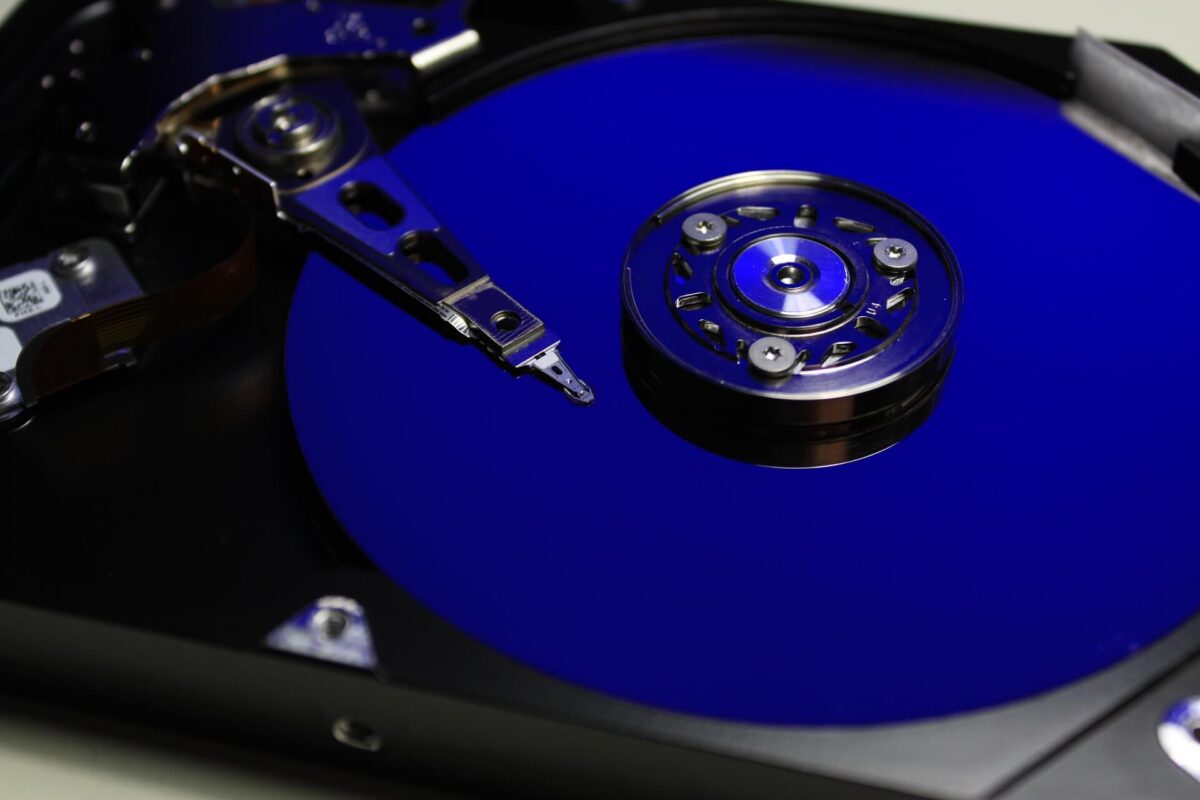
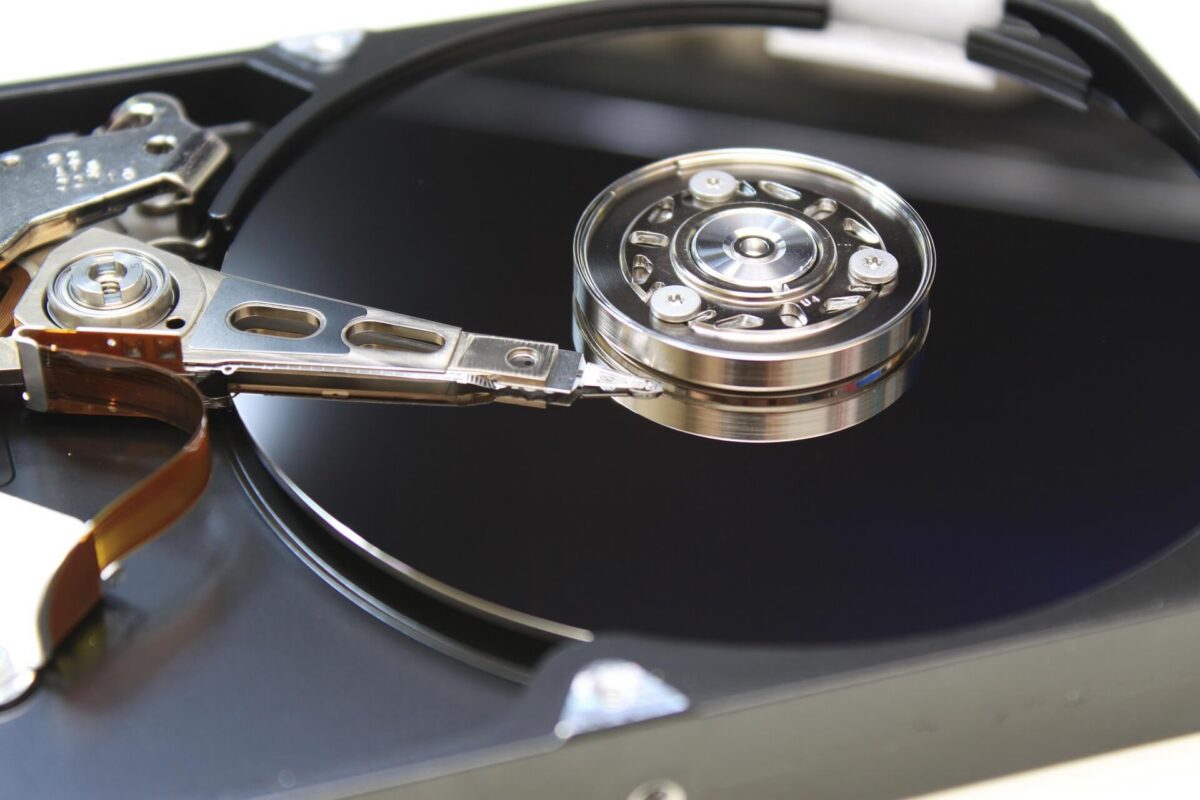
A hard drive works by storing information on spinning platters, which are circular disks coated with a magnetic disk layer. These platters hold all digital information in magnetic form.

To access this information, read-write heads move across the platters using an actuator arm. This process allows the system to store and retrieve data quickly and accurately.

Inside a traditional disk drive HDD, the moving parts physically locate data, which makes the process reliable but slower compared to modern storage systems.

HDD Storage Process

An HDD stores data on spinning platters coated with magnetic material. A moving component called the actuator arm positions read/write heads over the correct area to access data.

When you open a file, the drive:

  1. Locates the data on the platter
  2. Moves the read/write head into position
  3. Reads the magnetic information
  4. Sends it to the computer

This mechanical process makes HDDs reliable but slower.

SSD Storage Process

An SSD uses flash memory chips instead of moving parts. Data is stored electronically, allowing almost instant access.

This results in:

  • Faster boot times
  • Quicker file loading
  • Improved system responsiveness

HDD vs SSD: How They Work Differently

This hdd vs ssd data storage comparison highlights how each technology stores information and affects performance in everyday computing.

A disk drive HDD uses mechanical moving parts, including spinning platters, a magnetic disk surface, and read write heads. Because of these moving parts, HDDs are suitable for larger storage capacity but have slower performance when retrieving data.

In contrast, solid state drives SSDs use flash memory, which has no moving parts. This allows high speed performance, faster boot times, and quicker access to the operating system and files.

SSDs are more efficient for loading a large file, running applications, and improving overall system responsiveness because data is stored electronically rather than mechanically.

Hard Disk Drive (HDD)

  • Uses spinning platters and mechanical parts
  • Lower cost per GB
  • Larger storage capacity
  • Slower data access speed
  • More vulnerable to physical damage

Solid-State Drive (SSD)

  • Uses flash memory technology
  • No moving parts
  • Much faster performance
  • Higher reliability and durability
  • More expensive per GB

In simple terms:

HDD = storage capacity

SSD = speed and performance

Why Hard Drives Are Important

A hard drive is essential because it acts as the main storage system for all computer data. It ensures the operating system runs properly and allows users to save, open, and manage files.

Every application depends on storage to function correctly. Without a hard drive, no data would be stored permanently, and the system would not be usable.

Hard drives are responsible for:

  • Running the operating system
  • Launching applications
  • Storing user files
  • Managing long-term data storage

Whether HDD or SSD, both technologies are critical for everyday computing.

How Hard Drives Physically Work

Inside a disk drive HDD, spinning platters rotate at high speed while the actuator arm positions the read write heads over the correct location on the magnetic disk. This allows precise reading and writing of data.

Modern HDDs also use perpendicular recording, which increases storage efficiency by allowing more data to be stored vertically on the platters. This improves larger storage capacity without increasing physical size.

HDD vs SSD Key Differences

HDDs rely on spinning platters and mechanical movement, while SSDs use flash memory. This makes HDDs better for cost-effective larger storage capacity, while SSDs provide high speed performance and faster retrieving data.

Both technologies serve the same purpose, which is to store and retrieve data, but they differ in speed, durability, and efficiency.

How Hard Drives Work Physically (HDD Explained)

Inside an HDD, several components work together:

  • Spinning magnetic platters
  • Read/write heads
  • Actuator arm
  • Spindle motor

The platters rotate at high speed while the actuator arm moves the heads precisely across the disk to read or write data.

Modern improvements such as perpendicular magnetic recording (PMR) have significantly increased storage density, allowing more data to be stored in smaller physical spaces.

HDD vs SSD: Which One Should You Choose?

Choosing between HDD and SSD (the classic hdd vs ssd decision) depends on your needs:

Choose HDD if you need:

  • Large storage capacity
  • Lower cost solution
  • Archiving files and backups

Choose SSD if you need:

  • Faster performance
  • Quick boot times
  • Better gaming or editing experience
  • High reliability

Many modern computers now use a hybrid approach (SSD + HDD) for both speed and storage.

A hard drive is a data storage device that stores and retrieves digital information required for computer operation. HDDs use mechanical spinning platters, while SSDs use flash memory for faster performance.

Understanding the difference helps you choose the right storage device based on whether you prioritise speed, cost, or storage capacity.

Frequently Asked Questions (FAQ)

What is the main function of a hard drive?

A hard drive stores and retrieves all digital data on a computer, including the operating system and files.

Is SSD better than HDD?

SSDs are faster and more reliable, while HDDs offer larger storage at a lower cost for data storage needs.

Can a computer work without a hard drive?

No. A computer needs a storage device to run an operating system and store data.

What lasts longer, HDD or SSD?

SSDs generally last longer due to no moving parts, while HDDs are more prone to mechanical failure.

Why Are PCB Boards Green?

Key Takeaways...

Green PCBs are widely used because they are cost-effective, easy to inspect, and highly reliable in mass production. The green colour comes from the solder mask layer, not the electrical design of the printed circuit board (PCB board) itself. If you’re wondering “why are pcb boards green?”, the answer lies in the materials and processes used for the solder mask during PCB manufacturing.

The reason why PCB Boards are green

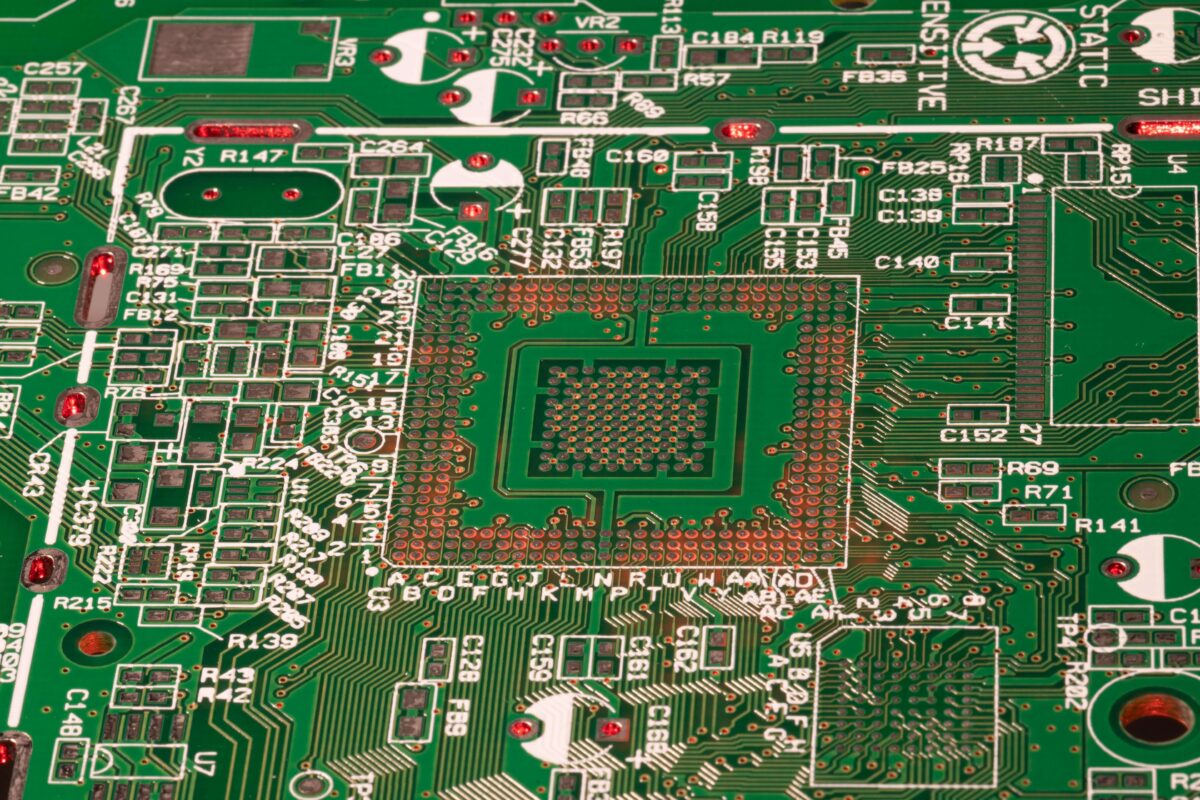
Most circuit boards, especially green PCB boards, appear green because of a protective layer applied during PCB manufacturing. This layer, known as the solder mask, is essential for protecting the printed circuit board while also making inspection easier. Over time, green PCBs became the industry standard due to their reliability and cost-effective production.

What Is a Printed Circuit Board?

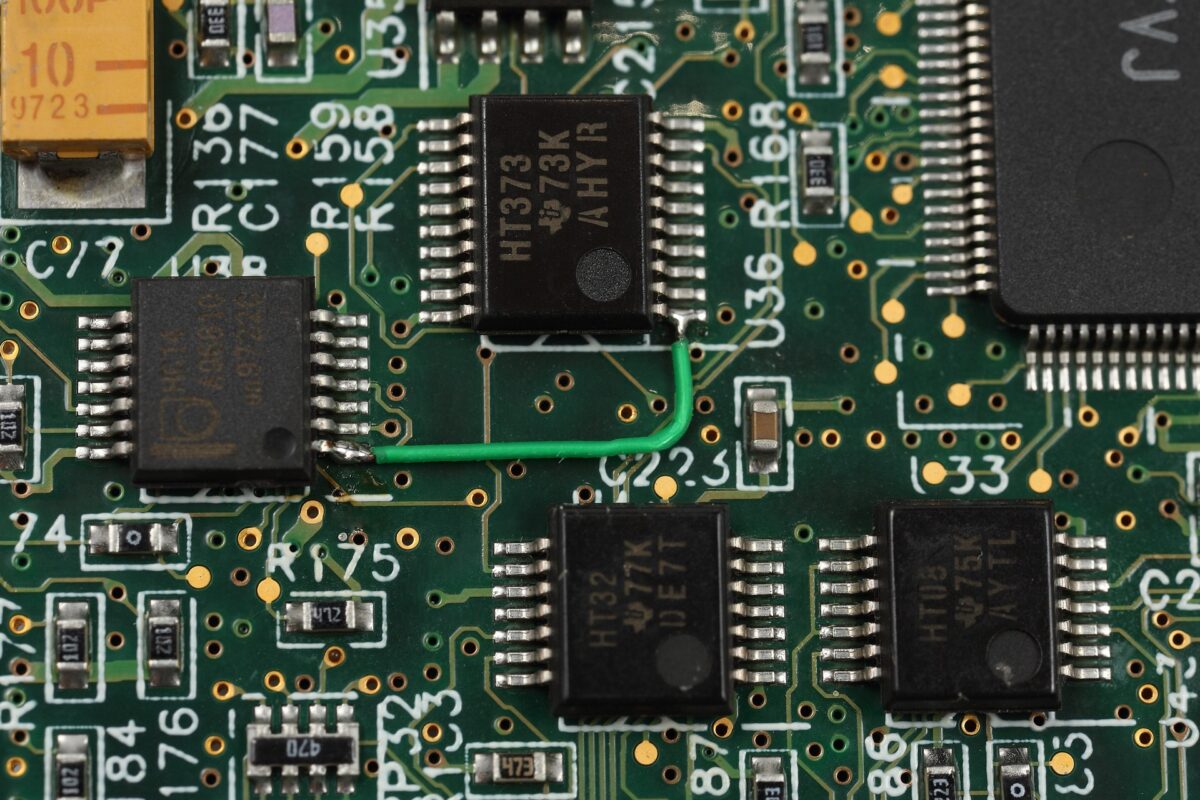
A printed circuit board connects electronic components using conductive copper pathways. These circuit boards (often called pcb boards) are used in almost all modern electronics, including smartphones, computers, and household appliances. The printed circuit board itself acts as the foundation that allows electrical signals to move between components in a controlled way.

Why Are PCB Boards Green in PCB Manufacturing?

The Role of the Solder Mask

The green colour comes from the solder mask, a protective coating applied during PCB manufacturing. It prevents corrosion, reduces short circuits, and protects the copper traces underneath. Green is widely used because it provides strong contrast, making circuit boards easier to inspect during production and repair.

A Cost-Effective Industry Standard

Green PCBs remain the most cost-effective option in large-scale production. This is because manufacturers have standardised the process over many years, making green solder mask materials cheaper and faster to apply. The efficiency of this process is one of the key reasons PCB manufacturing continues to rely on green as the default colour.

Better Visibility for Engineers

Another reason green is widely used is visibility. When working with a printed circuit board, engineers need to quickly identify traces, solder points, and potential defects. Green provides a balanced background that reduces eye strain and improves inspection accuracy compared to other colours.

Do Green PCBs Perform Better?

The colour of circuit boards does not affect electrical performance. Whether a board is green, red, blue, or black, its function remains the same as long as the PCB manufacturing process is done correctly. Green is mainly chosen for practical reasons such as visibility, standardisation, and cost-effective production.

Other PCB Colours Explained

Although green is the most common, other colours are also used in PCB manufacturing for specific purposes. Red and blue boards are often used for branding or prototypes, while black PCBs are used for premium designs. White boards are common in LED lighting because they reflect light more efficiently. In practice, manufacturers offer a range of pcb board colours, but the printed circuit board function remains unchanged regardless of colour.

Green PCB boards remain the global standard for circuit boards because they balance performance, manufacturing efficiency, and inspection quality. While other colours exist for design or branding, green PCBs continue to dominate PCB manufacturing due to their proven reliability and lower production cost.

Overall, green PCBs remain the industry standard because they are reliable, easy to inspect, and cost efficient while maintaining full functionality across all types of electronic devices.

How Much Does It Cost to Replace A PCB Board?

Key Takeaways...

Most PCB board replacement jobs fall between £80 and £600, depending on the device and complexity.

The cost of PCB Board replacement

This is one of the most common questions asked when dealing with faulty electronics. A printed circuit board (PCB) controls how devices function, and when it fails, repair or replacement costs can vary significantly depending on the situation. Many people ask, “how much does it cost to replace a pcb board?” because prices differ by device and fault.

In many cases, understanding real-world repair costs, the cost of PCB board replacement, and technician pricing insights can help you decide whether to fix or replace your device.

What Is a PCB Board?

A PCB (printed circuit board), often called a PCB board, is a flat board that connects electronic components using conductive pathways. It acts as the “brain” of many devices, including:

  • Washing machines
  • Boilers
  • TVs
  • Laptops
  • Industrial equipment

If you want a deeper understanding, you can explore how modern PCB manufacturing and design processes influence durability and cost.

Typical PCB Replacement Cost

The cost to replace a PCB board varies depending on the device and complexity. In other words, the cost of PCB board replacement can be higher for complex or custom systems.

Device Type

Average Cost (UK)

Household appliances

£80 — £250

TVs & electronics

£100 — £400

Boilers

£150 — £600

Industrial machines

£300 — £1,500+

💡 Labour costs typically add £50–£150, similar to other electrical repair jobs such as consumer unit or fuse box replacements.

Factors That Affect PCB Replacement Cost

Type of Device

Basic appliances are cheaper to fix, while complex systems like boilers cost more.

PCB Complexity

Multi-layer boards or custom-built PCBs increase the overall cost.

Availability of Parts

Older or rare PCBs may be harder to source, increasing expenses.

Labour Charges

Costs vary depending on technician expertise and repair difficulty.

Repair vs Replacement

Looking at DIY repair experiences and technician discussions can help you decide which option,  PCB board repair or replacement, is more cost-effective.

Repair vs Replacement: Which Is Better?

When deciding between PCB board repair and replacement, the best option depends on the extent of the damage and your long-term needs. PCB board repair is often the more affordable choice, typically costing between £40 and £150, making it ideal for minor faults or budget-conscious situations. However, repairs may only provide a temporary solution if underlying issues remain. On the other hand, PCB board replacement offers a more reliable and long-term fix, ensuring the device operates like new again. The downside is the higher upfront cost, which can be significant depending on the equipment. In general, if the damage is minor, repair is a practical short-term solution, but for severe faults or recurring issues, replacement is usually the better investment.

Many homeowners consider repair first after reviewing real user repair cases and troubleshooting discussions.

If the PCB is severely damaged, replacement is usually unavoidable.

Common Signs Your PCB Needs Replacing

  • Device not powering on
  • Burning smell or visible damage
  • Intermittent faults
  • Error codes on appliances

How to Save Money on PCB Replacement

  • Compare multiple repair quotes
  • Consider PCB board repair before replacement
  • Look into refurbished or recycled parts
  • Check warranty or insurance coverage

Expert Tip

If the PCB replacement cost exceeds 50% of the device’s value, replacing the entire appliance is often the smarter financial decision.

Most replacements fall between £80 and £600, depending on the device and complexity.

By understanding cost factors and exploring both repair and replacement options, you can make a more informed and cost-effective decision.